
Subtle differences in the timing, volume and duration of phrases are what gives music its “feel” – to inject more tension or weight; to make it more emotional and exciting. Veteran live performers and session musicians sometimes refer to playing “in the pocket”, which means playing every note in the exact sweet spot for each beat in every bar.
When a conductor coaxes a particularly emotional rubato from an orchestra, or a rhythm section lays down a massive groove, causing the listener’s body to move involuntarily, two things are certain. The performers have coalesced in a tangible way that is undefinable; and, whatever *it* is, everyone is doing it together.
Finale and Sibelius offer ways to “humanize” playback, but these various algorithms simply randomize timing, velocity and duration which isn’t really what happens in a live performance.
Sequencer programs like Logic, Digital Performer & Cubase offer a different approach to give recorded performances a more unified, human feel, using a technology originally developed in 1992 by acoustic researcher Ernest Cholakis.
Cholakis analyzed the recordings of professional studio musicians (mostly drummers and percussionists) in order to be able to describe, in a rational and objective way, the mix of conscious and sub-conscious articulation that musicians invoke to create a “feel”.

Cholakis’ work ultimately led to Digital Performer’s “Groove Quantize”, Logic’s “Groove Templates” and the “Feel Injector” feature in Pro Tools. The basic idea is straightforward: once you manage to record the perfect take of any instrument with just the right “groove” or “feel”, the subtle variations of note start times, note durations and velocity can be copied from that instrument’s performance to another. Quantization, a phenomenon which until this point had been sidelining a fundamental, essential and defining aspect of music, could finally move “off the grid”.
The notation-centric nature of Finale and Sibelius is, by definition, different. We can visually indicate performance instructions for dynamics and articulations; for instance, add a staccato if a note is to be played shorter, or an accent if it is to be played louder.
In live performance, context and experience are factors in how professional musicians interpret these markings, but these are simply values in the computer (e.g. “+10”) which are either interpreted the same way each time on playback, or artificially randomized in some way. The music notation takes precedence over more subtle nuances of playback such as volume shading or timing, e.g. a quarter note on beat 3 needs to show as a quarter note on beat three, even if it is not played exactly on the beat, or played ever so slightly softer or longer.
Both Finale and Sibelius partially solve this potential conflict of interest by including invisible “playback data” for each note that works with the visible notation in your scores. Finale calls this “Performance Data”, while Sibelius calls it “Live Playback”. When you import a midi file or use Hyperscribe (Finale) or Flexitime (Sibelius) to record in real time, the software will not only display the notation correctly, but will retain your performance in the background.
This raw playback data has an additional benefit: it can be used to re-transcribe or re-notate a section of your score. Try it: you can re-transcribe just a bar or two after import or recorded real-time note entry from your midi keyboard. Here’s how:
In Finale’s MIDI/Audio>Quantization Settings, change the quantize value, then choose MIDI/Audio>Retranscribe. In Sibelius 6, use the Simplify Notation>Renotate Performance plugin. In Sibelius 7, choose Renotate Performance from the Flexi-time group of the Note Input Tab.
(Note that when you enter music into your score in step-time in either Finale or Sibelius, no real-time performance data is generated. The playback data is identical to the notation data, so this data by itself won’t be possible to quantize / transcribe differently.) * * *
And here is where it really gets interesting. Since this background layer of live playback “performance” or “off the grid” data is already available in the file, wouldn’t it be amazing if there was a way to inject the nuances of this live performance from one instrument into another, similar to the “Groove Template” type feature in Logic, Digital Performer or Pro Tools? You didn’t think you’d this far into this tutorial without a payoff, did you? Here’s how:
SIBELIUS
Roman Molino Dunn has written a very cool plugin for Sibelius called “Distribute Live Playback” that allows you to specify one staff as the “conductor” or “master” and distribute its Live Playback data to notes at the same location in other staves. You can apply the plugin very selectively across several bars or even one or two notes within a bar to tighten up the performance or get the optimum rubato feel or “groove” between instruments:

Any note in a target staff which does not have a corresponding note in the source staff will not be changed. In the plugin dialog, you can choose to replace the Live Playback data in a single target staff, or in All Staves. Live Start Positions, Live Velocity, and Live Duration can be distributed independently:
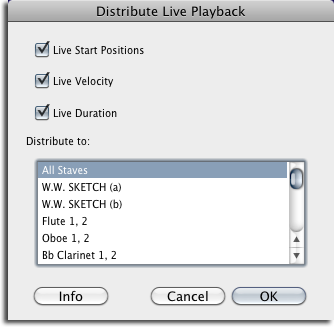
If you are trying get more realistic sounding playback within Sibelius, this plugin is a bargain.
There is also a free version of the plugin (available on the Avid plugins download page) called “Distribute Live Start Positions“, which doesn’t distribute Live Velocity or Live Duration, but is also very useful:
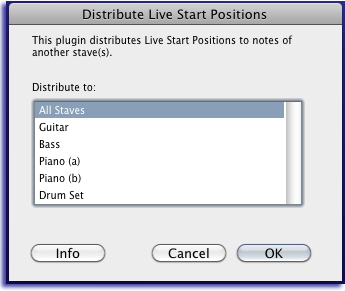
These plugins only affects playback, and do not change the notation in any way.
A particularly nice feature of these plugins is that you can apply Live Playback Data to a staff which previously had none, which can be a great way to breathe some life into a staff that was recorded in step-time, for instance.
* * * If none of the staves in your current piece have Live Playback data, you can add a temporary staff, recording “tap-to-tempo-groove” or “tap-rubato” to create “conductor” or “guide” start position data, then use the plugin to distribute this timing information to other staves. If you have a midi sequence with the desired feel, you can import it, and paste it into a temporary staff of the current score before running the plugin. Alternatively, while this would only be an artificial analogy of a true live performance, you could also generate live playback data in one or more staves using the Human Playback plugin prior to running Distribute Live Playback…
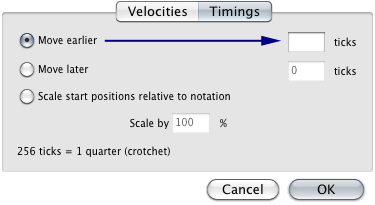
After running the plugin, you can further enhance playback using the Transform Playback dialog in Sibelius (Play>Transform Live Playback in Sibelius 6 or in the Live Playback Group of the Playback Tab in Sibelius 7). For instance, while keeping the Live Start Position shape you have just distributed, you could make legato string lines speak just a little earlier overall by shifting their timing ahead a few ticks. The Transform Playback dialog also allows you to make adjustments to Live Playback velocity and note durations:
In the Performance dialog, try setting the Espressivo and Rubato styles to “Meccanico” to hear the results of the plugin (at least initially). The Performance Styles settings introduce random timings which can work against the plugin. In Sibelius 7, go to the Interpretation group of the Play tab. In Sibelius 6, go to Play>Performance.
FINALE
Jari Williamsson has written a powerful plugin for Finale called JW Live Sync… (mac download) (windows download) which allows you to specify one staff as the “conductor” or “master” and distribute its Performance Data to notes at the same location in other staves. The plugin not only processes Start Time, but also Velocities and Note Durations (End Time), and significantly, it allows the user to control each of these variables independently.
You can apply the plugin very selectively across several bars or even one or two notes within a bar to tighten up the performance or get the optimum rubato feel. Select the target staff (or staves) at the beats or bars you want the plugin to infuse performance data into from the source staff:
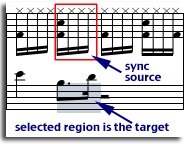
The plugin allows you to precisely control how closely the target performance will match the source performance by specifying a percentage for each of the Performance Data types:
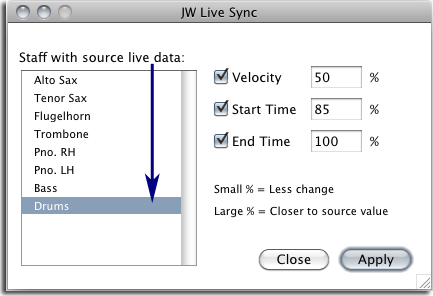
This plugin only affects playback, and does not change the notation in any way.
Another nice feature of the plugin is that you can apply Performance data to a staff which previously had none, which can be a great way to breathe some life into a staff that was recorded in step-time, for instance.
* * * If none of the staves in your current piece have Live Playback data, you can add a temporary staff, recording “tap-to-tempo-groove” or “tap-rubato” to create “conductor” or “guide” start position data, then use the plugin to distribute this timing information to other staves. If you have a midi sequence with the desired feel, you can import it, and paste it into a temporary staff of the current score before running the plugin.
The JW Live Sync plugin processes chords and grace notes intelligently, too.
Durations (End time) of target notes are only changed if the source note is the same (basic) duration ( e.g. a dotted half note won’t suddenly sound like a 16th note after running the plugin.)
Set Finale’s HP (Human Playback) to “None” to hear the “true” feel and results of the plugin. However, note that the plugin can also work *with* existing HP settings, by choosing HP (Incorporate) for user midi data such as start / stop times and velocities if you so choose.
That’s it! That’s all there is to it.
~robert
Related post: Realization Reversed : from Performance to the Page